

Your PC can have a fast multi-core processor and 32 GB of RAM, yet Windows may still feel sluggish, stutter during multitasking, or freeze when launching applications if the C drive is nearly full.
The C drive is the default primary partition where Windows stores system files, installed applications, temporary data, user profiles, and system-managed operational caches. When free space becomes critically low, Windows loses the buffer it needs for daily background processes, which can cause system operations to slow down or fail.
Quick Answer: For most Windows users, a 256 GB C drive is a practical minimum for smooth everyday performance, while 512 GB provides a much more comfortable long-term buffer. Regardless of overall capacity, keeping enough free space allows Windows to handle updates, temporary files, paging, and application caches more reliably.
1. Official Minimum vs. Practical C Drive Targets
It is essential to understand that Microsoft’s official minimum storage requirement and a practical storage recommendation are not the same thing.
According to Microsoft, Windows 11 requires a minimum of 64 GB of storage space to install. While a PC may meet this initial requirement, 64 GB is rarely comfortable for long-term real-world use. Once regular Windows updates, browser caches, software installations, and user data accumulate, a bare-minimum drive becomes cramped surprisingly fast.
2. How Much Free Space Should You Actually Keep on the C Drive?
Rather than focusing solely on total partition capacity, the most critical factor for day-to-day responsiveness is available free space. If you regularly download large files, edit high-resolution media, use Adobe applications, or work with virtual machines, a C drive that looks comfortably sized on paper can fill up faster than expected.
Here are realistic free space targets for maintaining smooth system performance:
- 256 GB C Drive: Try to keep roughly 30–50 GB free.
- 512 GB C Drive: Try to keep roughly 60–100 GB free.
- 1 TB C Drive: Keeping 100 GB or more free provides a comfortable buffer for many users, especially those running large applications or storing active working files on the system drive.
Maintaining this working buffer can reduce the risk of storage-related performance issues and reduce the need for frequent manual cleanup.
3. C Drive Capacity Recommendations by User Workload
Total storage needs depend on software habits and how you configure primary versus secondary storage drives across your PC.
General Users (Office Applications, Browsing, Media)
- 128 GB: Technically usable for basic Windows installations, but formatted capacity and post-update overhead leave very little room for application caches or major feature updates.
- 256 GB (Comfortable Starting Point): Provides a clean, manageable baseline for daily office software, web browsers, and routine system maintenance without constant storage warnings.
Power Users, Content Creators, and Developers
- 512 GB (Practical Target): Video editing software, 3D rendering engines, IDEs, and local databases generate substantial scratch disk allocations and cache files. A 512 GB boot drive provides substantially more working room for temporary renders, caches, and development tools, although large projects can still require additional storage.
PC Gamers
- 512 GB to 1 TB: Modern games are best stored on dedicated game drives, but user saves, launcher data, shader caches, and mod-management tools may store data on the C drive by default, depending on the game and software configuration.
4. Why Windows Needs Free Storage Space Behind the Scenes
When the C drive runs low on available space, some Windows background processes may become slower or fail because they have less working space.
Virtual Memory (Pagefile)
Windows uses a paging file (pagefile.sys) on the storage drive to move some memory data between RAM and storage when needed. If the drive containing the page file is nearly full, Windows has less flexibility to manage virtual memory, which can contribute to system instability or application errors under heavy workloads.
Hibernation & Fast Startup (hiberfil.sys)
System features like Windows Fast Startup save core operational states to a hidden system file (hiberfil.sys). The size of this allocation dynamically scales based on installed system RAM and power management setups.
Reserved Storage & System Updates
Windows may reserve storage for updates, temporary installation files, and other system operations. The amount of space required can vary depending on the Windows version and system configuration. If available disk space becomes too low, pending updates may fail to install successfully.
Practical Scenario: Consider a desktop with a 256 GB boot drive that has less than 2 GB of free space remaining. Even with a modern CPU and 32 GB of RAM, basic tasks like unzipping archives or launching heavy software can feel delayed because the OS lacks room to write dynamic runtime caches. Freeing up temporary files and unnecessary update data can restore some of the available working space and may improve responsiveness when low disk space was contributing to the slowdown.
5. Solid State Drives (SSDs) and Available Headroom
Most modern PCs utilize Solid State Drives (SSDs). Unlike legacy mechanical hard drives, SSD controllers manage data blocks through TRIM commands and wear-leveling algorithms to distribute data across flash memory efficiently.
There is no single universal percentage threshold at which every SSD instantly degrades in performance. However, when an SSD operates near full storage capacity, the drive controller has fewer available free blocks for immediate write operations. This may cause sustained write speeds to drop during heavy file transfers.
Keeping some free space available can give the SSD controller more room for background garbage collection and other internal operations, which may help maintain consistent performance.
6. C Drive vs. Physical SSD: Understanding Partitions
One of the most overlooked aspects of PC storage planning is confusing partition allocations with physical drive hardware.
If your PC contains a single physical 1 TB NVMe SSD, you have two main options for setting up your drive:
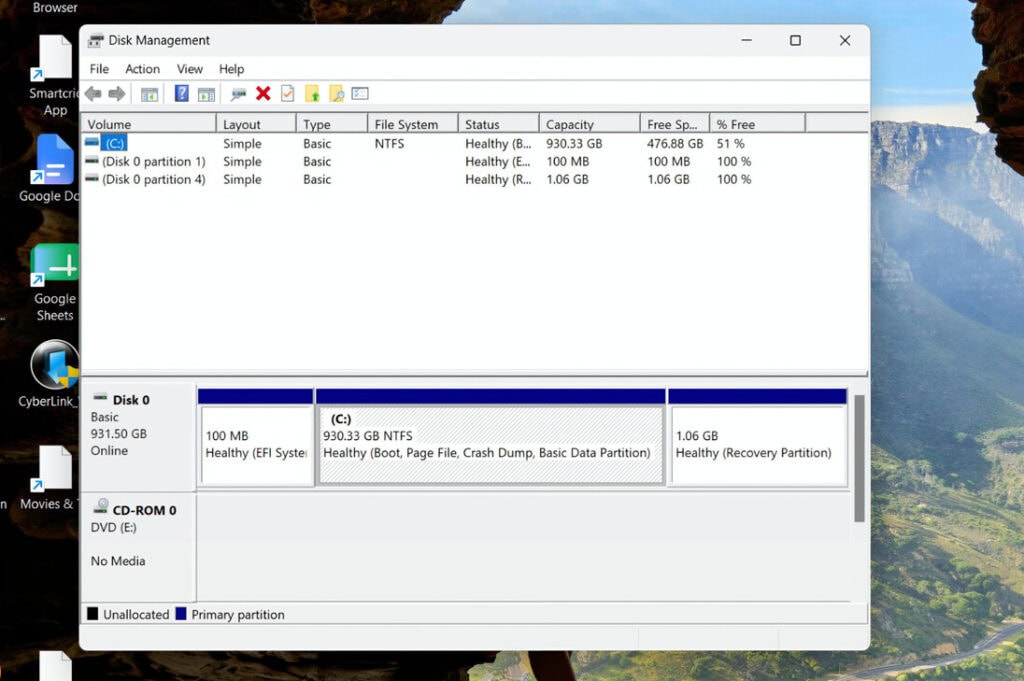
| Partition Setup Strategy | Configuration | Performance & Usability Impact |
| Option A: Single Large Partition | C Drive = 1 TB | Windows can use the available space across the large C partition, reducing the chance that the operating system becomes constrained by a small system partition while another partition has unused capacity. |
| Option B: Split System Partition | C Drive = 150 GB D Drive = 850 GB | Although you have 1 TB of total storage, the operating system is artificially constrained to 150 GB. The C drive can fill up quickly, even if D drive sits largely empty. |
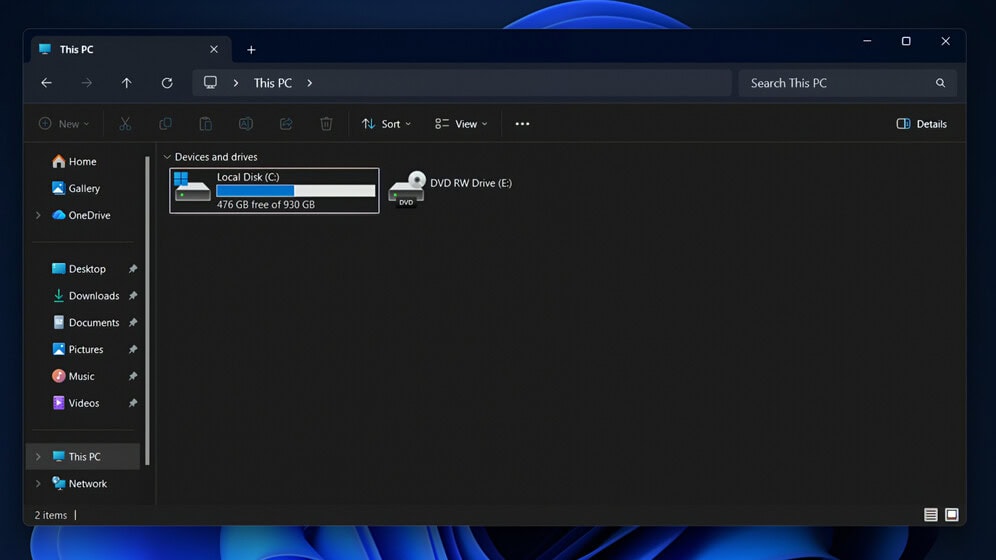
Games on C Drive vs. D Drive Partitions
Installing games on a secondary D partition is great for keeping your files organized. However, if C: and D: are simply two logical partitions on the same physical SSD, creating a D partition simply manages disk layout—it does not change underlying hardware speed.
With two separate physical SSDs (e.g., SSD 1 for Windows, SSD 2 for Games), operating-system and gaming workloads can be distributed across different storage devices, which may reduce storage I/O contention during heavy disk activity.
7. How to Safely Free Up C Drive Space
If your C drive is running low on headroom, you can safely reclaim space using native Windows tools:
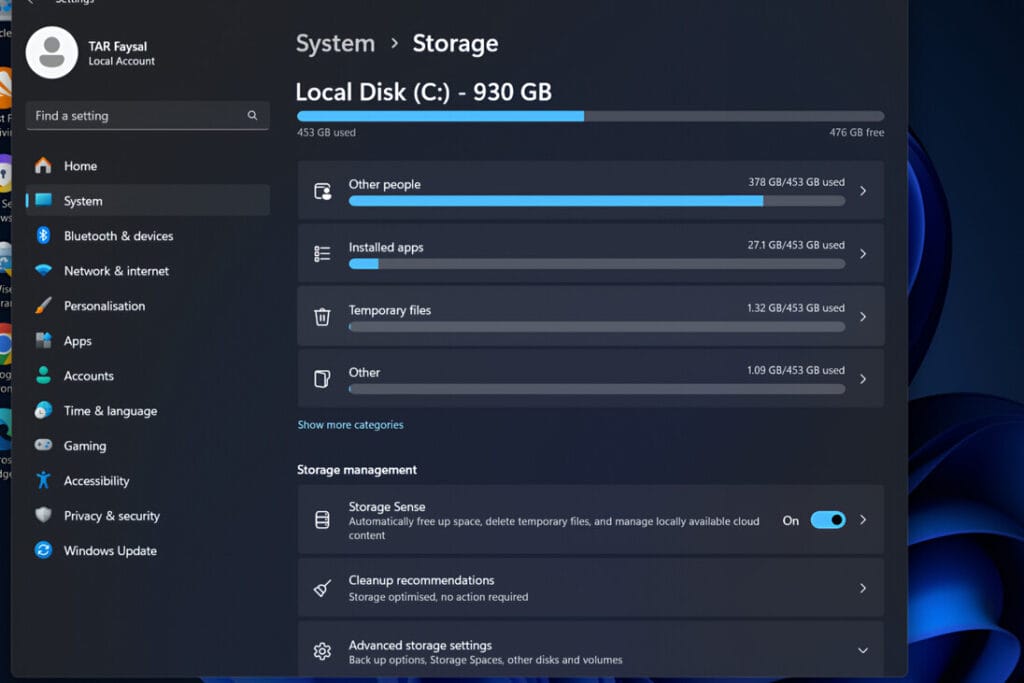
- Configure Storage Sense: Go to Settings > System > Storage to enable Storage Sense and configure it to automatically remove supported temporary files and other unnecessary data on a schedule.
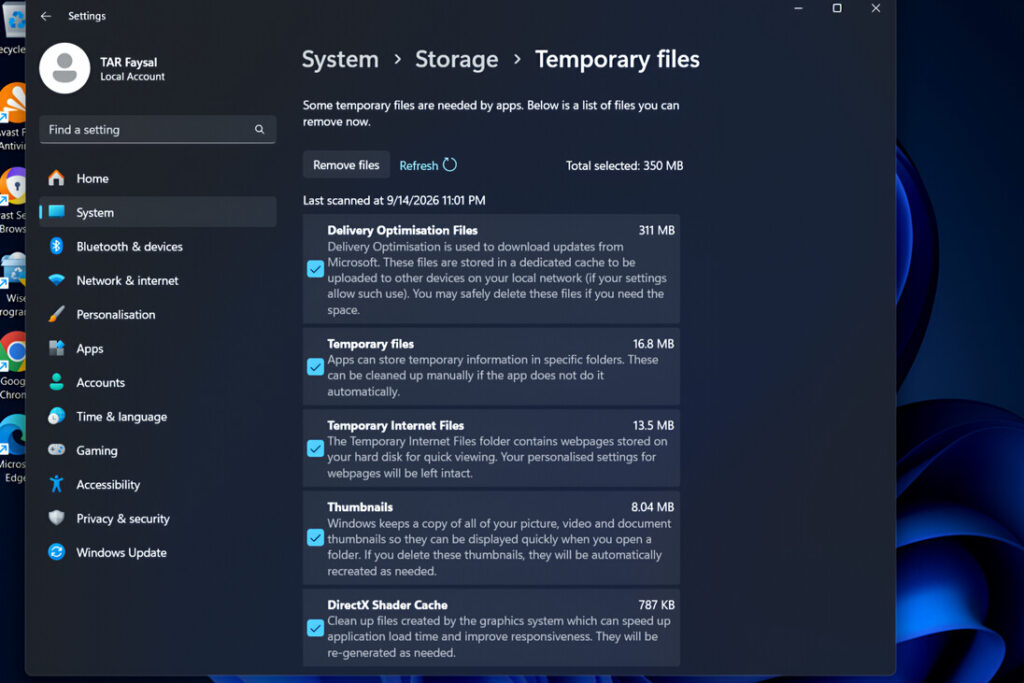
- Remove Previous Windows Installations: After some major Windows upgrades, Windows may keep a previous installation in a Windows.old folder. Running Disk Cleanup (or Storage Sense) as Administrator allows you to delete this, which often frees up a substantial amount of space, depending on the size of the previous Windows installation.
- Relocate User Folders: Redirect default storage locations for large folders (Downloads, Documents, Videos) from the C drive to a secondary drive or partition.
- Disable Hibernation (Desktop PCs): If you use a desktop PC and do not rely on Hibernation, open Command Prompt as Administrator and run powercfg /hibernate off to delete hiberfil.sys and reclaim system space.
Practical C Drive Targets
| User Profile | Practical Starting Point | Comfortable Target | Suggested Free Space |
| Basic / Office Use | 128 GB | 256 GB | 30 – 50 GB |
| Creators / Developers | 256 GB | 512 GB | 60 – 100 GB |
| Gamers / Power Users | 512 GB | 1 TB | 100+ GB |
Frequently Asked Questions
Is 128 GB enough for a Windows 11 C Drive?
While Windows 11 can technically run on a 128 GB drive, system updates, browser caches, and runtime files will quickly consume available space. A 256 GB C drive is the practical minimum for a hassle-free experience.
Should I create separate C and D partitions on a single SSD?
For most modern systems with a single SSD, keeping a single large C drive partition is easier to manage. Splitting a single drive into multiple partitions often artificially starves the C drive over time.
Why does my C drive fill up automatically over time?
Windows and installed applications continuously create temporary files, update-related data, logs, caches, and other system files during normal operation. Pagefile usage can also change depending on memory demand and system configuration.

Faysal Ahmed is the founder of TexLab AI and regularly writes about AI tools, technology, freelancing, and digital productivity. He has hands-on experience testing AI applications and reviewing online tools.