

Suppose you are working on a very important project staying in a great gaming session or editing a 4K video just at that moment suddenly your Windows PC completely froze or that scary blue colored Blue Screen of Death BSOD floated up in front of you! Nothing can be a more annoying situation than this. When a PC crashes suddenly without any kind of warning or signal it does not only ruin the work rather your many useful data or files can also be lost forever.
Falling into such a problem many Windows users assume that their computer is probably damaged forever or now they have to buy new hardware spending a lot of money. But the real truth is standing in the current year 2026 Windows operating systems especially Windows 11 are much more smart or intelligent than before. Most of the time behind the sudden crash of a PC there are small software troubles the PC becoming excessively hot or old driver problems which you can fix yourself completely for free sitting at home.
In today’s complete guide we will discuss in very simple language exactly for what reasons Windows PCs crash suddenly share some real life troubleshooting or solutions and give a step by step blueprint to make your system completely stable or alright.
The Core Problem: Why Does Our Operating System Crash?
To say it in absolute core words the operating system crashes only when the Windows Kernel faces such a big error which it cannot fix by itself in any way. So that a big permanent damage does not happen to your favorite hardware or internal files Windows shuts down the system by itself. Although it feels like a big disaster to us as users this is actually a native safety mechanism or security system of your PC!
To know perfectly exactly at which place your system is failing or getting stuck we have to test the internal settings and layout of our PC hardware and software properly.
1. Overheating and Thermal Throttling (The Silent Killer)
One of the main technical reasons for sudden computer or laptop crashes is overheating. The Central Processing Unit (CPU) and Graphics Processing Unit (GPU) of the device generate a lot of heat during operation. If the internal cooling system of the PC fails to control this heat Windows automatically activates the crash or shutdown process to prevent permanent damage to the chipset.
Method of verifying device temperature:
To observe the thermal status of the hardware free utility software like HWMonitor or Core Temp can be used. Under normal conditions if the CPU temperature stays above 180°F (approx. 82°C) or if it crosses 194°F (approx. 90°C) under heavy load you have to understand that the system is under serious risk.
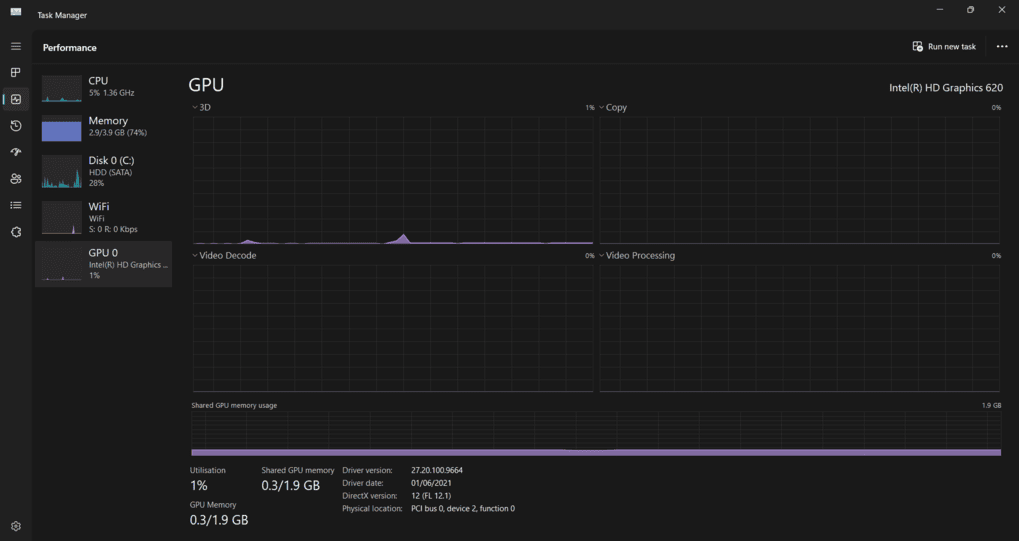
💡 My Observation & Personal Opinion:
Recently I solved a crashing problem of a Windows 11 laptop which used to freeze whenever multiple tabs were opened in the browser. Doing thermal analysis it was seen that the temperature of the processor was instantly touching 95°C. This was happening mainly due to dust accumulated in the cooling fan and dried up thermal paste. After cleaning the cooling vents and re applying fresh thermal paste the device temperature decreased by about 25°C and the crashing problem disappeared permanently. Therefore regular physical maintenance of the PC is extremely important.
2. Faulty or Failing RAM (Random Access Memory)
For fast data processing of the computer RAM holds temporary information. If any specific sector of the RAM stick is physically damaged or if a slight variation occurs in the voltage supply Windows instantly triggers the Blue Screen of Death BSOD through MEMORY_MANAGEMENT or DATA_BUS_ERROR messages.
Way to diagnose RAM faults (Diagnosis):
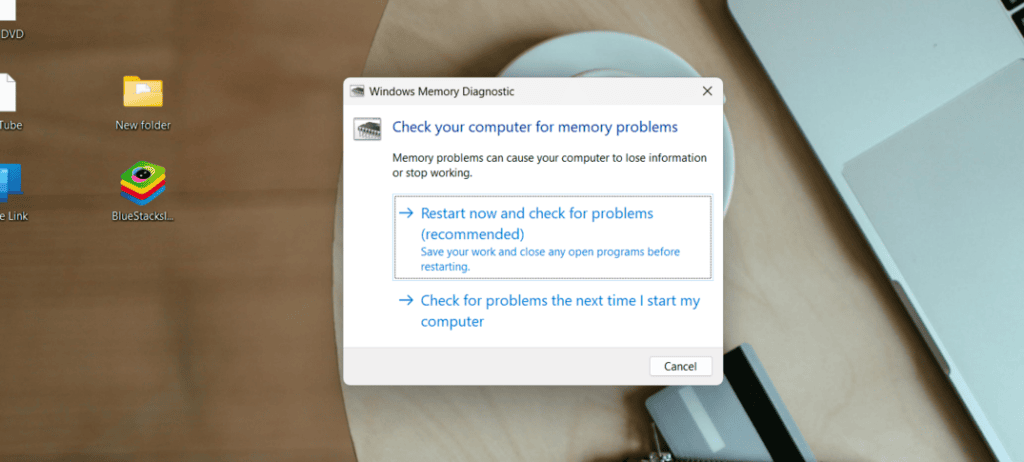
Through the built in diagnostic tool in Windows it is possible to verify the performance of the memory module without any third party app:
- Press Windows Key + R and type mdsched.exe in the run command then press enter.
- Select the “Restart now and check for problems” option from the displayed pop up.
- The system will restart automatically and begin the RAM scanning process through a blue diagnostic screen.
💡 My Observation & Personal Opinion:
There is no need to replace the RAM as soon as the diagnostic tool shows an error. Many times dust accumulates in the slots of the motherboard and disrupts electrical contact. In this case turn off the PC and take out the RAM sticks carefully then gently clean the golden pins of the RAM with a regular pencil eraser and firmly install them back into the motherboard. This simple and practical method is great for saving the cost of buying new hardware.
3. Corrupted or Outdated Hardware Drivers
Hardware drivers are basically a kind of digital translator which helps the Windows operating system to talk with the physical components or parts of your PC such as the graphics card Wi Fi card or audio chipset. If any driver becomes old has errors in its coding or becomes corrupted in some way during a Windows update then it will make your whole system severely unstable or shaky. Especially if the graphics card drivers of NVIDIA or AMD are not kept updated properly these are experts behind the sudden freezing and crashing of the PC!
Way to fix corrupted drivers:
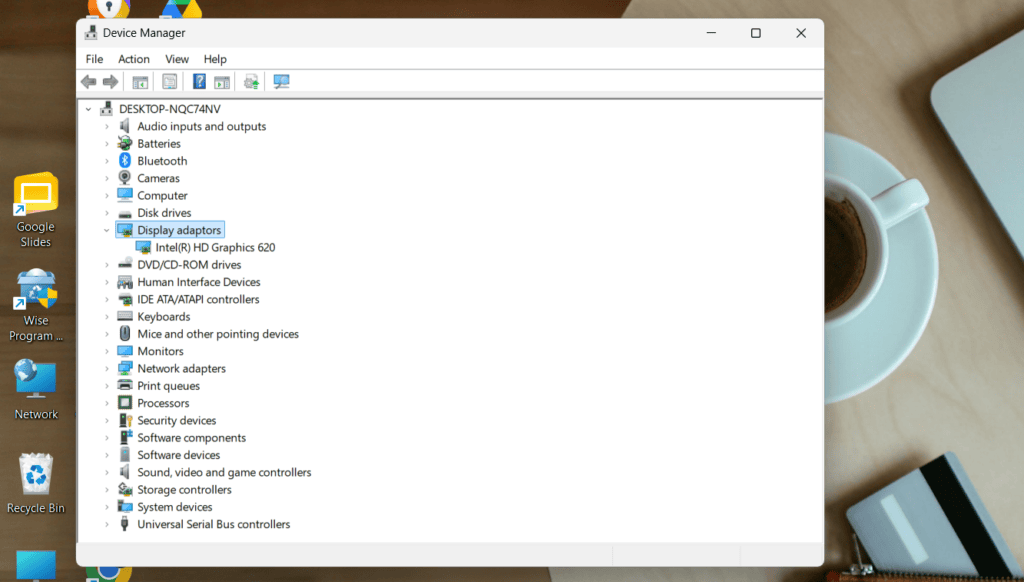
The safest way to fix driver related crashes is to install the driver again freshly using the official Device Manager.
- First right click on the Start menu and select Device Manager.
- Expand the section of the hardware that is causing the problem such as Display adapters or graphics card.
- Now right click on that component and select Update driver or Uninstall device to install a completely new copy.
4. Corrupted Windows System Files
Many times the problem is not of your hardware at all rather it belongs to the operating system itself. Due to sudden power cuts malware or virus attacks or getting stuck midway while installing some software some extremely important system files of Windows can become corrupted or incomplete. Whenever Windows goes to read or run such a corrupted system file it crashes immediately.
Way to fix Windows files with Command Prompt CMD:
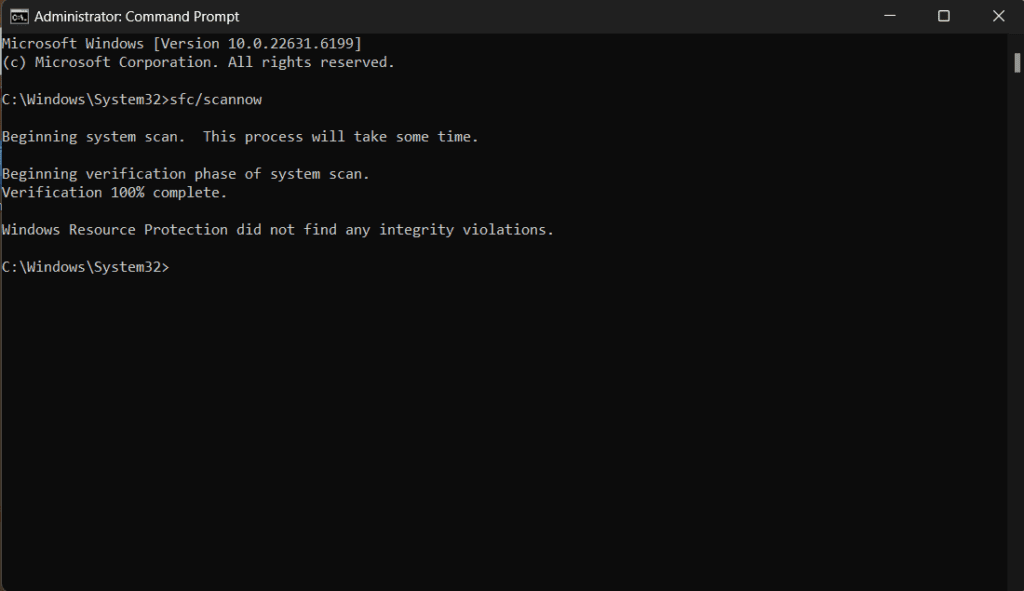
The hopeful matter is Microsoft has given some such built in command line tools inside Windows itself which can automatically find out the corrupted files of your system and repair them all by itself.
- Type CMD in the Windows search bar.
- Right click on Command Prompt and select Run as Administrator.
- Now type the following command and press enter: \text{sfc /scannow}
- After this scan is finished run the following advanced command for deeper cloud based repairing: \text{DISM /Online /Cleanup-Image /RestoreHealth}
💡 My Observation & Personal Opinion:
If the PC starts behaving strangely after a big Windows update then the two commands SFC and DISM should be run before everything. Standing in the current year 2026 these cloud linked repair tools work extraordinarily they match the local files of your PC with the official server of Microsoft and fix deep bugs or errors of the operating system by itself within just a few minutes.
5. Storage Drive Failures (HDD / SSD Degradation)
If your Windows operating system is installed on such an old hard disk HDD in which Bad Sectors are being created or if your old SSD brings its lifespan or writing capacity to the very end then Windows will crash randomly. A big symptom of these types of crashes is that the screen will start stuttering or shaking severely just the moment before the PC completely freezes or gets stuck.
Way to check storage drive health:
To test the health of your hard disk or SSD you can download a small and free tool named CrystalDiskInfo. It reads the internal SMART data of the drive and shows a clear percentage score or health status of how long your drive will last. If you see “Caution” or “Bad” written there for some reason then without making any further delay backup all your useful files immediately!
Diagnostic Comparison: Software vs. Hardware Crashes
An institutional guideline is highlighted below for the benefit of quickly identifying the specific source of sudden Windows crashes whether it is a software glitch or a physical hardware failure:
| Crash Symptom and Behavior | Likely Cause Type | Primary Troubleshooting Process |
| System temporarily freezes and displays Blue Screen of Death BSOD with specific error text | Software or driver error | Complete GPU driver update and execute the sfc /scannow command |
| PC undergoes complete black out and power cut without any kind of advance warning message or BSOD | Hardware related overheating or Power Supply Unit | Clean the internal cooling system replace thermal paste or test the PSU |
| Crash occurs while running heavy video editing applications or high end 3D games | Hardware related GPU or RAM limitation | Observe system thermals or temperature and test the RAM chip with Windows Memory Diagnostic |
| Sudden crash appears when the PC is idle or during regular web browsing | Software or operating system file corruption | Scan for harmful malware in the background and rollback or remove recently installed Windows updates |
Comprehensive Checklist to Prevent Random Windows Crashes
To keep your workstation maximum stable fast and optimized in line with modern computing of 2026 include the following habits in your regular PC maintenance schedule:
- Minimize Startup Apps: Extra background processes create an overload on system resources. Therefore it is better to deactivate or disable unnecessary startup applications through Task Manager.
- Avoid Third-Party Driver Boosters: Stay completely away from using any automatic third party driver installation software. These tools frequently push faulty incompatible or malware ridden driver packages into the system. Always use official Windows Update or the official website of the hardware manufacturer brand for driver updates.
- Ensure Adequate PSU: If you have recently upgraded the graphics card GPU or processor CPU of your PC but keep the Power Supply Unit PSU unchanged then the system can crash due to lack of adequate electricity supply at full load.
Conclusion: Take Control of Your System Stability
Although sudden Windows PC crashes are extremely annoying you do not need to be a certified IT technician to troubleshoot and fix the core technical problems behind them. By observing system thermals verifying memory integrity repairing core system files and keeping drivers up to date in a systematic way about 90% of common system failures of Windows can be easily removed.
Do not let your ongoing work speed be disrupted due to random system freezing. Follow the diagnostic steps mentioned above clean the internal clutter of the system and enjoy a stable and high performance computing experience!
Frequently Asked Questions (FAQ)
1. Can Windows crash randomly due to digital viruses or malware?
Answer: Yes it is completely possible. Some powerful malware or harmful crypto mining scripts create extra pressure on the processor and RAM of your PC or corrupt important operating system files with the purpose of bypassing security layers. To avoid the risk of these types of digital infections running a full system deep scan through the built in Windows Security Windows Defender app of Windows is urgent.
2. What to do if the PC becomes unstable or crashes right after a Windows update?
Answer: If instability appears in the system right after an official OS update then you have to understand that there is a compatibility conflict or mismatch of your hardware with some driver or software package included with that update. To solve this problem going to Settings > Windows Update > Update history > Uninstall updates option and removing the recently installed update package will bring the PC back to its normal condition again.
3. Is the Blue Screen of Death BSOD a signal of the PC being permanently ruined or damaged?
Answer: Not at all. Blue Screen or BSOD is basically just a protective informative stop screen. With the purpose of preventing big permanent hardware damage Windows temporarily suspends its operational activities and displays a specific error code on screen such as CRITICAL_PROCESS_DIED or PAGE_FAULT_IN_NONPAGED_AREA to identify the problem. Users can analyze these specific error codes and identify and solve the core problem very easily.

Faysal Ahmed is the founder of TexLab AI and regularly writes about AI tools, technology, freelancing, and digital productivity. He has hands-on experience testing AI applications and reviewing online tools.