
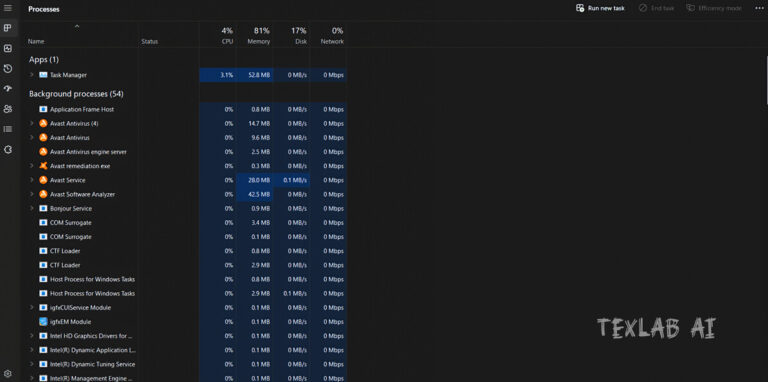
A computer or laptop is now one of our main companions in daily work. But if your favorite PC starts running at a snail’s pace after using it for a few days your work gets totally ruined. Taking about a minute just to open a simple file or the PC hanging as soon as you start a browser we have all suffered more or less from these kinds of problems without any shortage.
Behind a PC becoming slow the main culprits are usually some internal Windows settings the accumulation of lots of unnecessary files or hardware limitations. However it is not that you have to buy a new PC or laptop just because it is slow and everyone does not always have that budget either. Today we will discuss 7 such simple and effective solutions trying which will make your old or slow PC start running at a rocket’s speed again.
1. Disabling Startup Programs:
As soon as the computer boots or turns on quite a few applications such as Skype Spotify or game launchers automatically start running in the background. These unexpectedly occupy the processor and RAM memory as a result of which the PC takes a long time to boot and the device becomes slow.
- Procedure: First open Task Manager by pressing the Ctrl Shift Esc buttons on the keyboard together. Enter the Startup Apps section from the left side menu bar. Among the apps here right click and Disable those which are not needed as soon as the PC starts.
- Special Advice: It is best to disable all other unnecessary third party apps from startup while keeping the antivirus that ensures PC security or important system drivers running.
2. Clean Temporary Files:
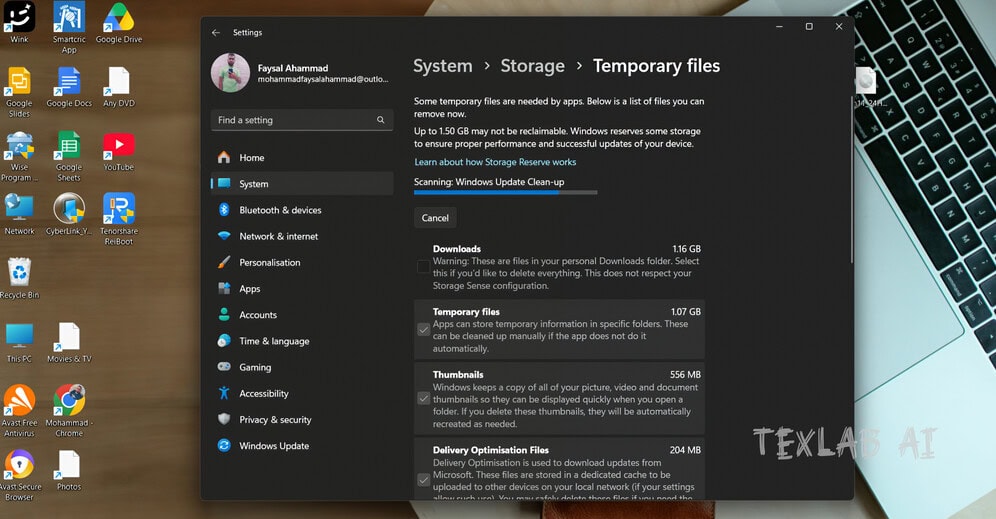
Whenever we do any work on the PC browse the internet or use any software Windows automatically creates some temporary files by itself in the background. At the end of the day these garbage files accumulate to waste several gigabytes GB of space and jam the entire system.
- How to do it: Open the Run command box by pressing the Windows R buttons together from your keyboard. There first type temp and press enter and select all the files inside and delete them.
- In the same method search in the Run box again by typing %temp% and the next time prefetch and delete all the junk files inside. Create a habit of doing this work at least once a week to always keep the PC fast.
3. Run Disk Cleanup:
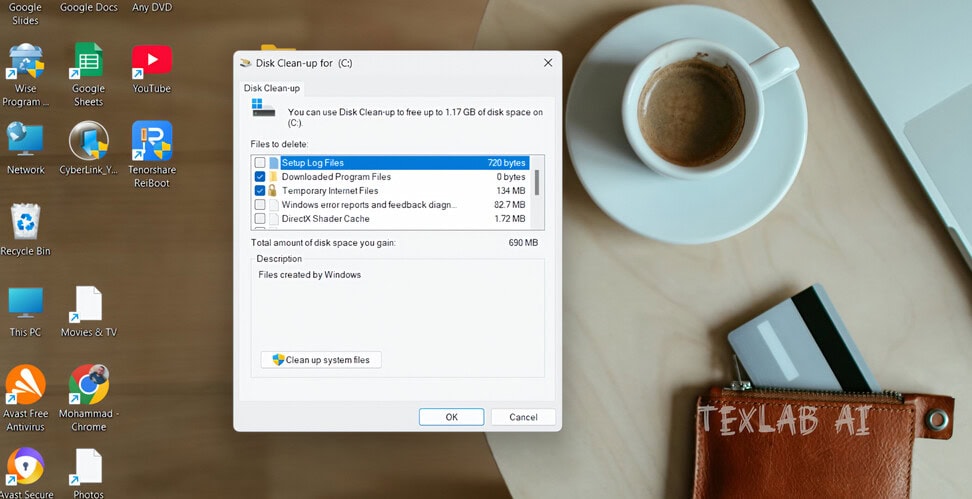
There is a built in and very useful tool in the Windows operating system which is capable of scanning and deleting unnecessary and harmful files from the drive. Usually since Windows is installed in the C Drive keeping this drive sufficiently empty is one of the main conditions to keep the PC fast.
- Procedure: Type Disk Cleanup in the Windows search box and run the app and select your C drive and give OK.
- After that tick the boxes for Temporary Files Recycle Bin and Windows Update Cleanup in the list and click on the Clean up system files option at the bottom. This simple optimization will instantly increase the overall speed of your PC.
4. Adjust Visual Effects:
Windows uses different types of shadows animations and visual effects so that it looks quite beautiful and attractive. However if the configuration of your PC is a bit low or medium quality these beautiful animations create a lot of extra pressure on your processor and graphics.
- How to do it: Go to the Windows search bar and type Adjust the appearance and performance of windows and open it. A small pop up window will come here from there blindly select the Adjust for best performance option. With this the heavy animations of Windows will turn off and the hassle of PC lagging will reduce completely.
5. Keep Windows Updated:
The widely circulated idea that updating Windows decreases PC speed is completely baseless. In fact Microsoft fixes various security bugs of the operating system and improves device performance through regular updates.
- Procedure: Enter the Windows Update option from system settings and click on the Check for updates button to install the latest updates. Along with this the PC motherboard processor and graphics drivers should also be updated regularly. This will increase system stability and there will be no risk of any heavy software crashing.
6. Increase Virtual Memory:
If the amount of physical RAM in the device is low such as 4 GB system lagging during any heavy application or multitasking is very normal. To remove this limitation Windows has an excellent feature which can temporarily use a specific part of your storage or SSD as an alternative to RAM. This is basically called virtual memory.
- Procedure: First enter the Advanced System Settings option of Windows. From there click on the Performance settings under the Advanced tab.
- Now go to the Advanced tab again and click on the Change button of the Virtual Memory section. Here uncheck the Automatically manage option and activate the Custom size option and increase the memory size according to the capacity of your physical RAM.
7. Replacing Mechanical Hard Disk with SSD:
Even after applying all kinds of software optimization if the PC speed is not as expected then it must be assumed that the hardware of the device needs to be upgraded. It is almost impossible to comfortably run the modern and heavy Windows operating systems of the current current year 2026 with old mechanical hard disks HDD.
- What to do: If old technology hard disks are still used in your device then quickly add a high quality SSD Solid State Drive.
- Install your Windows or main operating system inside the new SSD. A regular SSD will increase the data read and write speed of your slow PC and make it at least 5 to 10 times faster than before.
Final Thoughts:
To always keep a computer healthy and fast regular care is necessary. Instead of buying an expensive PC suddenly keeping your own PC optimized like this is the smartest thing to do. If you follow these top 7 simple tricks properly your Windows PC will give much more smooth and fast performance than before.
How did you like these solutions to increase Windows speed? Do not forget at all to let us know in the comment box which trick worked best on your PC. To get all such daily new professional guidelines and technical solutions of the technology world keep an eye regularly on Texlabai.com.

Faysal Ahmed is the founder of TexLab AI and regularly writes about AI tools, technology, freelancing, and digital productivity. He has hands-on experience testing AI applications and reviewing online tools.